Why Audio Stems Don’t Line Up
Diagnosing offsets, drift and timing errors at the source. Before you move a single file by hand, work out which kind of timing fault you’re actually looking at — each one points to a different cause.
Stems out of alignment
Same start · one enters late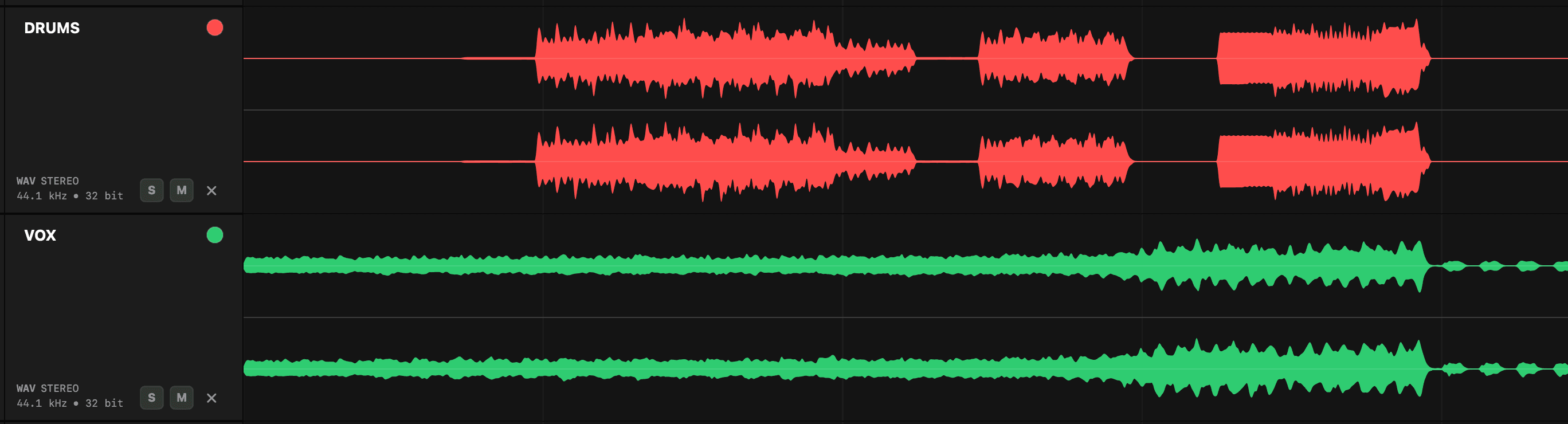
Both files share the same start point, but the drums enter later than the vocal — a timing difference you can see at a glance.
First, identify the type of timing problem
“The stems don’t line up” can describe several different faults. Before moving audio manually, decide whether the problem is a constant offset, progressive drift, section-specific movement, or a file that is simply the wrong length.
| Pattern | What you observe | Most likely causes |
|---|---|---|
| Constant offset | The stem is early or late by the same amount throughout | Different bounce start, hardware latency, plugin delay, SMPTE offset |
| Progressive drift | It starts correctly but moves further out over time | Sample-rate misinterpretation, clocking or time-stretch mismatch |
| Section-specific | Only edits or later sections are displaced | Unconsolidated clips, warp markers, playlist or comp error |
| Correct start, wrong end | The stem ends before or after the session | Different bounce range, truncated tail, extra region or metadata issue |
Cause 1: exported from different start points
The most common cause is also the simplest: not every stem was bounced from the same timeline origin. Exporting selected clips or regions can create files that begin at their first audible event instead of at bar 1 or 00:00. When imported together, the performances are internally correct but their absolute positions are lost.
Best practice
Cause 2: the sample rate is interpreted incorrectly
A 48 kHz file contains 48,000 samples for each second of audio. If those samples are interpreted at 44.1 kHz without correct conversion, playback becomes slower and lower in pitch. Less dramatic handling errors produce gradual drift — the timing difference grows as the song continues, which is different from a simple fixed offset.
Cause 3: delay compensation or external hardware
Plugins and hardware inserts introduce latency. Most DAWs compensate during playback, but printing paths, disabled delay compensation, sidechain routing, or external loops can produce an offset in the rendered file. A constant delay measured in samples or milliseconds often points to this category.
Cause 4: warp, tempo or elastic-audio differences
A stem rendered from a warped or tempo-following track can differ from one printed with the processing disabled. Tempo maps, varispeed, elastic audio, and clip stretch algorithms may also produce section-specific timing changes. Verify whether every source was rendered from the same session state and tempo map.
Cause 5: editing and consolidation errors
A file can begin correctly and still contain later clips that have moved, been omitted, or come from an old playlist. Crossfades, comp edits, and region boundaries should be consolidated before export — especially when the receiving engineer doesn’t have the original session grid.
A reliable diagnostic sequence
- 1Confirm the session rate. Read the file metadata and create the test session at the majority or specified sample rate.
- 2Align by the agreed origin. Not by a random transient. If all files were meant to start at bar 1, place them at bar 1.
- 3Compare an early and late transient. If the offset is identical, suspect a fixed start or latency issue. If it grows, suspect rate or stretch.
- 4Inspect the waveform around edit boundaries. Section-only errors often reveal missing silence, duplicated regions or unconsolidated takes.
- 5Compare against the reference mix. Use distinctive drums, vocals or arrangement events to establish which file is correct.
- 6Document the measured error. Report “the vocal is 1,024 samples late throughout” rather than “the vocal feels off.”
Repair or request a rebounce?
A small, proven constant offset can sometimes be repaired safely, especially under deadline. Progressive drift, multiple section-specific errors, or an unexplained sample-rate discrepancy should normally be rebounced at source. Manual stretching can hide the symptom while changing transients and phase relationships.
Engineer checklist
QC your stems in seconds — no DAW needed
Stem Checker loads and plays your stems in sample-accurate sync and flags length issues in your exports — mismatches, missing audio, duplicates, clipping, dual mono and more. A faster, more reliable way to review and organise your stems and multitracks.
Save time. Deliver with confidence.